

Test claims workflow
You can submit test professional, dental, and institutional claims to make sure your claims process is working smoothly from end to end. When you submit test claims to the Stedi Test Payer, Stedi generates and returns an 835 Electronic Remittance Advice (ERA) based on the original claim.
Submit test claims
You can submit test claims with any payer ID and receive test 277CA claim acknowledgments from Stedi. This helps you test your claim submission workflow and practice interpreting and handling 277CA responses.
To send test claims:
- JSON endpoints: Set the
usageIndicatorproperty in the test claim body toT. - X12 EDI endpoints and SFTP: Set
ISA15(Interchange Usage Indicator) toT(Test Data) instead ofP(Production Data). - Stedi portal: Designate the claim as a test claim during the submission process.
- In the 1500 claim form, select Test for the EDI mode.
- During X12 EDI upload, set
ISA15(Interchange Usage Indicator) toT(Test Data).
Stedi processes the claim and applies our entire catalog of edits and repairs.
Test 277CAs
When you submit a test claim to any payer, Stedi returns a test 277CA claim acknowledgment indicating whether the claim was successfully processed.
View test claims
When you designate a claim as test data, you can view it in test mode from the claims view. Toggle test mode to ON to review test claims and their associated responses.
Generate test ERAs
When you submit test claims to the Stedi Test Payer, Stedi returns a test 277CA claim acknowledgment and a test 835 Electronic Remittance Advice (ERA) based on the original claim. Only test claims you send to the Stedi Test Payer will generate a test 835 ERA.
You can use this approach to test your claims processing workflow from end to end.
Enroll with the Stedi Test Payer
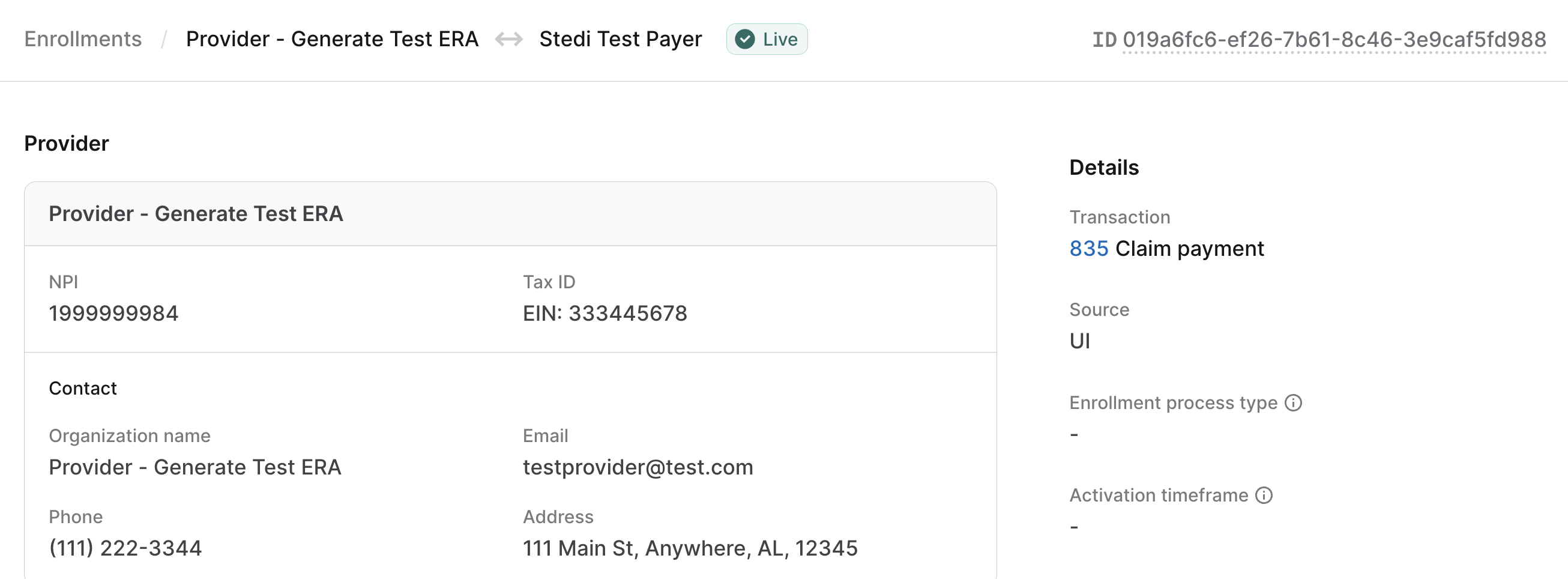
You must enroll your provider with the Stedi Test Payer for 835 Claim payment. Visit Create and manage transaction enrollments for instructions on how to submit an enrollment request.
Once submitted, the enrollment request is automatically set to LIVE status within one minute. You can start submitting test claims to the Stedi Test Payer immediately after enrollment.
Submit a test claim
Submit a test claim to the Stedi Test Payer. Ensure that you:
- Designate the claim as test data:
- JSON endpoints: Set the
usageIndicatorproperty toT. - X12 EDI endpoints and SFTP: Set
ISA15toT. - Stedi portal: Specify that this is a test claim in the submission form.
- JSON endpoints: Set the
- Set the payer to the Stedi Test Payer.
- Use the billing provider NPI and tax ID you enrolled with the Stedi Test Payer.
The following example shows how to submit a test professional claim to the Stedi Test Payer using the Professional Claims JSON endpoint.
curl --request POST \
  --url "https://healthcare.us.stedi.com/2024-04-01/change/medicalnetwork/professionalclaims/v3/submission" \
  --header "Authorization: <api_key>" \
  --header "Content-Type: application/json" \
  --data '{
    "tradingPartnerName": "Stedi Test Payer",
    "tradingPartnerServiceId": "STEDITEST",
    "usageIndicator": "T",
    "billing": {
      "address": {
        "address1": "123 Some St",
        "address2": "Floor 1",
        "city": "A City",
        "postalCode": "123450000",
        "state": "NY"
      },
      "contactInformation": {
        "name": "Test Data Health Services, Inc.",
        "phoneNumber": "5553334444"
      },
      "employerId": "<TAX-ID-USED-IN-ENROLLMENT>",
      "npi": "<NPI-USED-IN-ENROLLMENT>",
      "organizationName": "Therapy Associates",
      "providerType": "BillingProvider",
      "taxonomyCode": "2084P0800X"
    },
    "claimInformation": {
      "benefitsAssignmentCertificationIndicator": "Y",
      "claimChargeAmount": "109.20",
      "claimFilingCode": "CI",
      "claimFrequencyCode": "1",
      "healthCareCodeInformation": [
        {
          "diagnosisCode": "F1111",
          "diagnosisTypeCode": "ABK"
        }
      ],
      "patientControlNumber": "<YOUR-CLAIM-ID>",
      "placeOfServiceCode": "02",
      "planParticipationCode": "A",
      "releaseInformationCode": "Y",
      "serviceFacilityLocation": {
        "address": {
          "address1": "1234 Other St",
          "city": "A City",
          "postalCode": "123450000",
          "state": "NY"
        },
        "npi": "1999999984",
        "organizationName": "Smith Associates"
      },
      "serviceLines": [
        {
          "professionalService": {
            "compositeDiagnosisCodePointers": {
              "diagnosisCodePointers": [
                "1"
              ]
            },
            "lineItemChargeAmount": "109.20",
            "measurementUnit": "UN",
            "procedureCode": "90837",
            "procedureIdentifier": "HC",
            "procedureModifiers": [
              "95"
            ],
            "serviceUnitCount": "1"
          },
          "providerControlNumber": "111222333",
          "renderingProvider": {
            "firstName": "Jane",
            "lastName": "Smith",
            "npi": "1999999984",
            "providerType": "RenderingProvider",
            "taxonomyCode": "111YP2000X"
          },
          "serviceDate": "20240101"
        }
      ],
      "signatureIndicator": "Y"
    },
    "receiver": {
      "organizationName": "Stedi"
    },
    "submitter": {
      "contactInformation": {
        "name": "Test Data Health Services, Inc.",
        "phoneNumber": "5552223333"
      },
      "organizationName": "Test Data Health Services, Inc.",
      "submitterIdentification": "<YOUR-SUBMITTER-ID>"
    },
    "subscriber": {
      "address": {
        "address1": "2222 Random St",
        "city": "A City",
        "postalCode": "123450000",
        "state": "NY"
      },
      "dateOfBirth": "20000101",
      "firstName": "John",
      "gender": "M",
      "groupNumber": "3335555",
      "lastName": "Anon",
      "memberId": "U7777788888",
      "paymentResponsibilityLevelCode": "P",
      "subscriberGroupName": "Test ERAs Group"
    }
  }'
Test responses
Stedi returns the following responses within minutes of submitting a test claim to the Stedi Test Payer:
- A test 277CA claim acknowledgment response indicating whether the claim was successfully processed. Note that if Stedi rejects the claim in the 277CA, you won't receive a test 835 ERA.
- A test 835 Electronic Remittance Advice (ERA) containing information from the original claim, including the same:
- Provider information
- Patient information
- Service line details
- Charges
Test 835 ERAs always indicate that all service lines are paid, with the same charge amounts you submitted in the test claim. Note that when you submit production claims, payers may send ERAs with different outcomes, including partially paid, denied, split, or bundled claims.
Retrieve test responses
You can retrieve test 277CAs and 835 ERAs through the following methods:
APIs
You can retrieve responses through Stedi's reports endpoints. Visit Get and correlate acknowledgments and ERAs for details.
SFTP
Claim responses will appear in your server's from-stedi directory. Visit SFTP submission for details.
Stedi portal
You can review test 277CAs and 835 ERAs from the claims view. Toggle test mode to ON to view test claims and responses.
277CAs
Click All claims at the top of the page to view all test claims in your account.
- Click a claim to view a timeline of its processing activity.
- Click an Acknowledgment (277CA) to review its details.
Stedi displays key information about the 277CA, including the billing provider's information and status codes.
835 ERAs
Click 835 ERAs at the top of the page to review all test ERAs in your account.
- Filter by processed date, trace number, total paid, payment date, payment method, payer, payee (billing provider), payee NPI, payee Tax ID, or PCN (Patient Control Number).
- Click an ERA to review its details.
You can also find ERAs for a specific claim from the claim's timeline:
- Click All claims at the top of the page.
- Click a claim to view its timeline.
- Click Find matching ERAs in the side panel under the PCN to search for ERAs that match the claim's Patient Control Number (PCN). If no ERAs match, the ERA list will be empty.
- Click an ERA to review its details.
Correlate test responses
Both the test 277CA and the test 835 ERA will include the Patient Control Number you specified in the claim submission, which is what you can use to match these responses to the original claim.
277CA claim acknowledgment
- JSON:
transactions[].payers[].claimStatusTransactions[].claimStatusDetails[].patientClaimStatusDetails[].claims[].claimStatus.patientAccountNumber - X12 EDI:
Loop 2200D TRN02(Patient Control Number) - Stedi portal: Go to the claims view and click a claim to open its timeline. All associated 277CAs are listed in the timeline view. Click a 277CA to review its details, including the Patient control number.
835 Electronic Remittance Advice (ERA)
- JSON:
transactions[].detailInfo[].paymentInfo[].claimPaymentInfo.patientControlNumber - X12 EDI:
Loop 2100 CLP01(Patient Control Number) - Stedi portal: Go to the claims view, click 835 ERAs, and click the ERA to open it. On the Overview tab, the Patient Control Number is in the Claims section in the Patient Control Number column for each claim.