

Claims view
The claims view in the Stedi portal provides insight into your claims processing pipeline. In the claims view, you can:
- Submit claims through the interactive CMS-1500 form or by uploading raw X12 EDI files.
- Review every claim you submit through Stedi and the details of related claim transactions, such as 277CA claim acknowledgments.
- Review a clear timeline of activity for each claim, including resubmissions and responses you receive from Stedi and the payer.
- Understand a claim's current status within the processing pipeline, such as whether the claim has been accepted or rejected.
- Filter submitted claims by key details, such as processed date, status, patient name, and service date(s).
- Review 835 Electronic Remittance Advice (ERAs) and download ERA PDFs.
Submit claims
You can submit claims from the claims view through the interactive CMS-1500 form or by uploading raw X12 EDI files. Manual claim submission is useful for testing, QA, debugging your claims processing pipeline, and handling scenarios that fall outside your normal workflow.
To submit a claim, click Submit claim in the claims view and select one of the following options:
- CMS-1500 form: Submit professional claims through an interactive form. Visit Submit professional claims for detailed instructions.
- Upload raw X12 file: Upload X12 EDI files for professional, institutional, or dental claims. You can submit multiple claims in a single file. Visit the claim submission pages for detailed instructions:
Filter claims
Click All claims at the top of the claims view to filter all of the claims you've submitted through Stedi. Available filters include:
| Filter | Description |
|---|---|
| Processed date | When Stedi received each claim. |
| Status | Where a claim is in the processing pipeline. Refer to claim processing status for details on how we determine a claim's status and how to know if action is required to move the claim forward. |
| Type | Claim type - professional, dental, or institutional. |
| Patient control number | The patient control number for the claim, sometimes referred to as the claim ID. You submitted this value in:
|
| Patient name | The patient's first or last name. Partial matching is supported. |
| Member ID | The subscriber's member ID for their health plan. |
| Payer | Payer name, ID, or alias. Refer to the Payer Network for a complete list for each payer. |
| Billing provider NPI | The billing provider's NPI. |
| Billing Provider TIN | The billing provider's TIN. |
| Total charges | Claims with a minimum or maximum charge amount. |
| Service date | Claims with specific service dates. |
Toggle Test mode to ON to review test claims you've submitted.
Claim timeline
From the claims view, click any claim to review a timeline of its processing activity, including when the claim was submitted and when you received 277CA claim acknowledgments from Stedi and the payer.
The timeline view also includes resubmissions for the claim and any associated 277CAs resulting from those resubmissions.
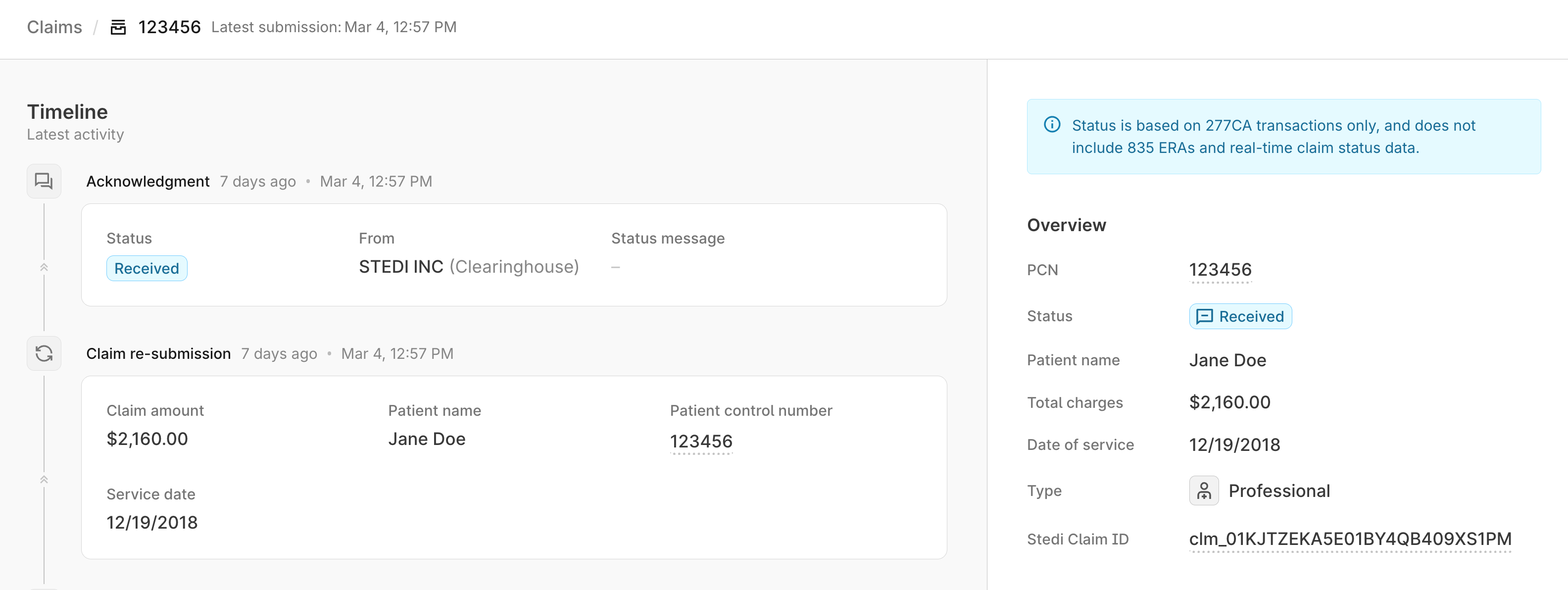
835 ERAs and real-time claim status requests aren't currently included in the timeline. Click Find matching ERAs in the side panel under the PCN to view a pre-filtered list of all ERAs that match the claim's Patient Control Number (PCN).
Transaction details
From a claim's timeline view, hover over a transaction and click See more detail to review a user-friendly summary of key information, such as patient information, service dates, and service line details. You'll also be able to review the raw X12 EDI for the transaction.
Download CMS-1500 claim PDF
You can download a PDF version of professional claims in the CMS-1500 format from both the timeline view and the claim's detail page.
-
From the claims view, click a professional claim to open its timeline.
-
Do one of the following:
- From the timeline view, hover over the claim and click Download CMS-1500 claim PDF.
- Open the claim's detail page and click Download CMS-1500 claim PDF.
-
In the download menu, choose whether to Include CMS-1500 form background. This option is checked by default.
The National Uniform Claim Committee (NUCC) and CMS provide exact specifications for blank CMS-1500 forms, including paper size and ink color. Many provider offices are accustomed to using these pre-printed forms, and their Practice Management System (PMS) applications are designed to print claim data onto them. Generating PDFs with no background allows you to print the claim data directly onto official pre-printed forms.
-
Click Confirm download. The PDF downloads to your computer.
Review 835 ERAs
You can review 835 ERAs by filtering the full list or finding ERAs for a specific claim from its timeline.
Filter ERAs
Go to the claims view and click 835 ERAs to review all 835 ERAs in your account. Available filters include:
| Filter | Description |
|---|---|
| Processed date | When Stedi received the ERA. |
| Trace number | The unique identifier the payer assigns to the ERA transaction. You can use this value to link the ERA with the associated payment, if applicable. For example: When the payment is remitted by check, the trace number is the check number.
|
| Total paid | The total amount paid across all claims included in the ERA. |
| Payment date | When the payer issued the payment. |
| Payment method | The method used for payment (such as check or ACH). |
| Payer | Payer name, ID, or alias. Refer to the Payer Network for a complete list for each payer. |
| Payee | The payee's (billing provider's) name. Partial matching is supported. |
| Payee NPI | The payee's (billing provider's) National Provider Identifier. |
| Payee Tax ID | The payee's (billing provider's) Tax Identification Number. |
| PCN (Patient Control Number) | A claim's PCN, sometimes referred to as the claim ID. Since an ERA can contain multiple claims, this returns ERAs where any claim matches the specified PCN. This is the same value you submitted on the original claim in:
|
Find ERAs from a claim's timeline
You can also find ERAs for a specific claim from the claim's timeline:
- Go to the claims view.
- Click the associated claim to open its timeline.
- Click Find matching ERAs in the side panel under the PCN to search for ERAs that match the claim's Patient Control Number (PCN). If no ERAs match, the ERA list will be empty.
ERA details
Click any ERA in the list to review its details. The Overview page contains key information about the ERA, including:
- Payer and payee information
- Total amount paid
- Payment date and method
- Details for all claims included in the ERA
- Adjustments applied to each claim
You can also click EDI at the top of the ERA details page to review the raw X12 EDI for the transaction.
Download ERA PDF
You can download a PDF version of the ERA from its details page.
- Go to the claims view and click 835 ERAs.
- Click the ERA to open its details page.
- Click Download PDF at the top right.
- In the download menu, select your preferences:
- Include Stedi logo in 835 ERA PDF: Adds the Stedi logo to the PDF.
- Download each claim as a separate PDF: Downloads one PDF for each claim included in the ERA. When the ERA contains multiple claims, the PDFs will be provided as a zip file. For example, if the ERA contains 5 claims, you'll download a zip file containing 5 separate PDFs.
- Click Confirm PDF download.
You can also download a PDF for each claim individually. Click the three dots to the right of a claim in the Claims section and select Download 835 ERA PDF for this claim.
Resubmit or cancel claims
You can resubmit or cancel claims from within the claims view.
To resubmit a claim:
- Click the claim you want to resubmit to open its timeline.
- Hover over the claim and click Edit and resubmit. Select one of the following options:
- CMS-1500 resubmission: Resubmit professional claims through the interactive form. Visit Resubmit or cancel claims for detailed instructions.
- X12 transaction resubmission: Resubmit professional, institutional, or dental claims through the X12 EDI editor. Visit Resubmit or cancel claims for detailed instructions.
Claim processing status
The claims view displays each claim's current processing status. These statuses are designed to help you quickly understand whether action is required to move claims forward.
Stedi's claim processing statuses are different from the status codes you receive in 277CAs and in real-time claim status checks:
- 277CAs: Each 277CA contains one or more status category codes that indicate receipt, acceptance or rejection at a specific stage of processing. Stedi evaluates all available 277CAs to determine the claim's current overall processing status.
- Real-time claim status checks: Claim status checks can only provide status information about claims that have been accepted into the payer's adjudication system. Stedi's statuses provide insight both before and after the claim reaches the payer.
Stedi currently doesn't use information from real-time claim status checks or 835 ERAs to determine claim status. That means Stedi's statuses won't indicate when claims have been adjudicated or paid. You'll need to monitor for 835 ERAs independently.
Stedi claim status codes
A claim in the Stedi portal can have one of the following processing statuses:
| status | description | What to do |
|---|---|---|
| Submitted | You submitted the claim to Stedi but haven't yet received a 277CA response from Stedi or the payer. | No action needed. Monitor for the next 277CA claim acknowledgment with acceptance or rejection status. |
| Received | The clearinghouse or payer has acknowledged receipt of the claim. This doesn't mean the claim has been accepted for adjudication. | No action needed. Monitor for the next 277CA claim acknowledgment with acceptance or rejection status. |
| Rejected | Either Stedi or the payer rejected the claim. This can happen even when the payer has acknowledged receipt. | Review the 277CA claim acknowledgment for error details, correct the claim, and resubmit. |
| Accepted | The payer has accepted the claim into their adjudication system and it's currently being processed or adjudicated. | No action needed. Monitor for the next 277CA claim acknowledgment or the 835 ERA with adjudication details. |
| Invalid | The 277CA contains unsupported or invalid status codes. | Review the 277CA claim acknowledgment for details. If the 277CA is from Stedi, contact Stedi support. If the 277CA is from the payer, contact the payer for clarification. |
Received vs. Accepted
Many payers send two 277CAs:
- An initial 277CA with
STC01-01(Health Care Claim Status Category Code) set toA1(Acknowledgment/Receipt). Stedi sets the claim status to Received. - A second 277CA with
STC01-01set to an explicit Accepted or Rejected code. Stedi then updates the claim status to Accepted or Rejected accordingly.
However, some payers don't send 277CAs with explicit Accepted codes. In these cases, the claims view keeps the claim in Received status.
If a claim has been in Received status longer than expected, you can run a claim status check to determine its processing status with the payer. You can also contact Stedi support with questions about behavior for particular payers.
How we determine status
Once you submit a claim, you'll receive several 277CA claim acknowledgments from the clearinghouse and the payer that indicate receipt, acceptance, or rejection at various stages of processing.
Stedi uses the information in the 277CAs to determine the current status of a claim.
Step 1: Classify each 277CA
We assign each 277CA transaction a submission status based on the STC01-1 (Health Care Claim Status Category Code) status category codes present in the transaction. Full code list
When there are multiple codes present within a 277CA, we evaluate codes in the following priority order:
- Rejected
- Accepted
- Received
- Invalid (unrecognized STC codes)
For example, if a 277CA contains both rejected and received status category codes, we classify the 277CA as rejected.
Step 2: Decide which 277CA reflects the claim's status
Each claim can receive multiple 277CAs from Stedi and the payer as it moves through the processing pipeline. Once we evaluate the status of all existing 277CAs for a claim, we apply the following rules to determine which 277CA reflects the claim's overall status:
- Current submission: We focus on the 277CAs tied to the most-recent 837 submission. If there are no 277CAs for the most recent submission, the claim's status is set to Submitted.
- Terminal outcomes: We prioritize by Rejected --> Accepted --> Received. For example, if any 277CA from Stedi or the payer has a rejected status, we use the 277CA rejection to set the claim status, even if there are other 277CAs with accepted codes. This helps ensure you don't miss required actions to correct and resubmit a rejected claim.
- Payer > Clearinghouse: We prioritize 277CAs from the payer over 277CAs from Stedi or intermediaries. For example, if a claim has a Stedi 277CA with received status codes and a payer 277CA with received status codes, we use the payer's 277CA to set the overall claim status to Received.
- Recency: We use recency as a final tiebreaker to ensure deterministic results. If a claim has multiple 277CAs from the same source with the same status category codes, we first check the effective date listed in the EDI transaction and use the most recent one. If those are the same, we'll use the 277CA that most recently entered Stedi's system.
Note that at this time, we only use 277CAs to determine claim status. We don't incorporate information from real-time claim status responses or 835 Electronic Remittance Advice (ERAs). For example, if a claim has been paid, that won't be reflected in Stedi's claim processing statuses - you'll need to monitor for the 835 ERA independently.
Examples
The following scenarios illustrate how we use the above rules to determine a claim's status when there are multiple 277CAs.
Scenario 1
You submit a claim to Stedi and receive the following 277CAs:
| Source | Status classification | Effective date |
|---|---|---|
| Stedi | Received | 2026-01-01 |
| Payer | Accepted | 2026-01-02 |
The claim's status would be set to Accepted based on the accepted status category codes in the payer's 277CA.
Scenario 2
You submit a claim to Stedi and receive the following 277CAs:
| Source | Status classification | Effective date |
|---|---|---|
| Payer | Rejected | 2026-01-01 |
| Payer | Received | 2026-01-02 |
This scenario can happen when a payer sends responses out-of-order due to network delays, outage recovery, retries, or batch processes. In this case, the claim's status would be set to Rejected because we prioritize terminal statuses over the timing of the responses.